How to Fix Crimson Desert Not Launching on the Xbox PC App
If Crimson Desert refuses to launch through the Xbox PC App, Pearl Abyss points first to Gaming Services. Here is the official workaround, what it actually does, and what support-safe checks to try if the app still fails afterward.
If Crimson Desert will not launch through the Xbox PC App, Pearl Abyss already has a specific first fix: update Gaming Services.
That is the official workaround in the live FAQ, and it matters because Pearl Abyss also says it is still investigating a permanent solution with Xbox. So if you are stuck on the Microsoft-store version, start there before you do anything more dramatic.
The official workaround from Pearl Abyss
Pearl Abyss says to do the following:
- Open the
Microsoft Store. - Go to
Downloads. - Click
Check for Updates. - If an update is available, click
Updatenext toGaming Services. - If you do not see an update, press
Windows + Rand paste:
ms-windows-store://pdp/?productid=9MWPM2CQNLHN- Let that open the Gaming Services page in the Microsoft Store.
- Update it there if needed.
- Launch Crimson Desert again.
That is the cleanest official path, and it is the one you should try first.
Why Gaming Services is the first thing Pearl Abyss points to
The Xbox PC App version depends on Microsoft's store and service layer in a way that Steam and Epic do not. When Gaming Services is outdated or desynced, games can fail before you ever reach the real in-game launcher flow.
Pearl Abyss does not publish a deep technical breakdown here, but its workaround makes the intent clear: before blaming your hardware, it wants you to refresh the Microsoft-side service dependency that the Xbox PC App build relies on.
That is also why the FAQ does not tell you to start with a reinstall. It tells you to update the service layer first.
The exact order you should follow
Most failed launch guides bury the useful part in the middle. Here is the support-safe order based only on official pages.
Step 1: Update Gaming Services
Do not skip this step. Even if you think Windows already updated everything, follow the FAQ exactly.
Step 2: Relaunch the game
Once Gaming Services is updated, close the Store and try launching Crimson Desert again through the Xbox PC App.
Step 3: Make sure the game itself is current
Pearl Abyss' Report an Issue page says one of the first general checks is confirming you are on the latest game version. Hotfixes and post-launch fixes have been arriving quickly, so an outdated build can look like a stubborn launcher problem.
Step 4: Update GPU drivers
The same support notice says to install current graphics drivers for better stability and performance. The FAQ is more specific on general PC guidance:
AMD 25.9.2or newerNVIDIA 581.29or newer
Step 5: Check for software interference
Pearl Abyss explicitly warns that launch or stability problems can be caused by:
- antivirus tools
- VPNs
- firewalls
- anti-spyware tools
- recording or broadcasting software
That does not mean permanently uninstalling everything. It means temporarily ruling out interference in a controlled way.
What not to do first
Because this is a Microsoft-store issue, it is easy to get dragged into aggressive forum advice. Avoid jumping straight to:
- random PowerShell scripts
- registry edits copied from strangers
- deleting save folders first
- third-party "repair" tools
None of those are part of Pearl Abyss' official guidance for this problem. The studio starts with Gaming Services, then moves into standard PC support checks.
If the official workaround still does not fix it
At that point, use the broader official troubleshooting page rather than improvising.
Pearl Abyss says to work through these checks:
- confirm the game is updated
- verify files where your platform allows it
- update GPU drivers
- check background software interference
- use a clean install only after backing up saves
For PC players, Pearl Abyss also strongly recommends using its PERS error-reporting client if the issue persists, because it can send logs, saves, screenshots, dumps, and hardware details automatically.
If you are stuck after the Gaming Services update, this is the point where an official bug report becomes more useful than more guessing.
Save backup matters before any clean reinstall
Pearl Abyss' support page includes save locations and explicitly tells players to back them up before attempting a clean install.
That is important because a launcher issue can make people impatient. Do not turn a launch failure into a save-loss problem.
The support notice says saves on PC are stored under:
C:\Users\[USER NAME]\AppData\Local\Pearl Abyss\CD\saveBack them up somewhere else before you remove anything.
Is this still an active known issue?
Pearl Abyss moved the Xbox PC launch issue into the Solved section of the current known-issues page, which is a good sign. But the FAQ still keeps the Gaming Services workaround live, and that tells you some players may still hit the problem in practice.
So the best way to read the official status is:
- Pearl Abyss considers the issue addressed enough to move it out of the active bug list
- the Gaming Services fix is still the official recovery step if you personally still see it
That is why this guide still matters.
When to escalate to support
Escalate after you have done all of the following:
- Updated Gaming Services.
- Relaunched the game.
- Checked for the latest patch.
- Updated drivers.
- Tested without interfering background software.
If it still fails, use the official report flow instead of repeating the same steps endlessly.
FAQ
What is the main official fix for Crimson Desert not launching on the Xbox PC App?
Pearl Abyss says to update Gaming Services through the Microsoft Store or through the direct Microsoft Store product link.
Do I need to reinstall the whole game first?
No. That is not the first official step. Start with Gaming Services.
Can antivirus or VPN software stop Crimson Desert from launching?
Pearl Abyss says background security tools, VPNs, firewalls, and recording software can interfere with launch and stability.
Should I still use this guide if the known-issues page says the problem is solved?
Yes. The FAQ still provides the Gaming Services workaround, which is the official recovery path if you still hit the issue locally.
What to do next
Keep Crimson Desert Known Issues and Best Workarounds bookmarked, then compare your system against Crimson Desert System Requirements — PC, PS5 & Xbox. If you want broader PC tuning help after the game finally launches, use Best PC Settings for Crimson Desert After Patch 1.00.03. If your PC uses Intel graphics instead of the Xbox App build, Crimson Desert Intel Arc Support Status is the more relevant read.
その他のガイド
Crimson Desert's Hidden Food System Mod Explained
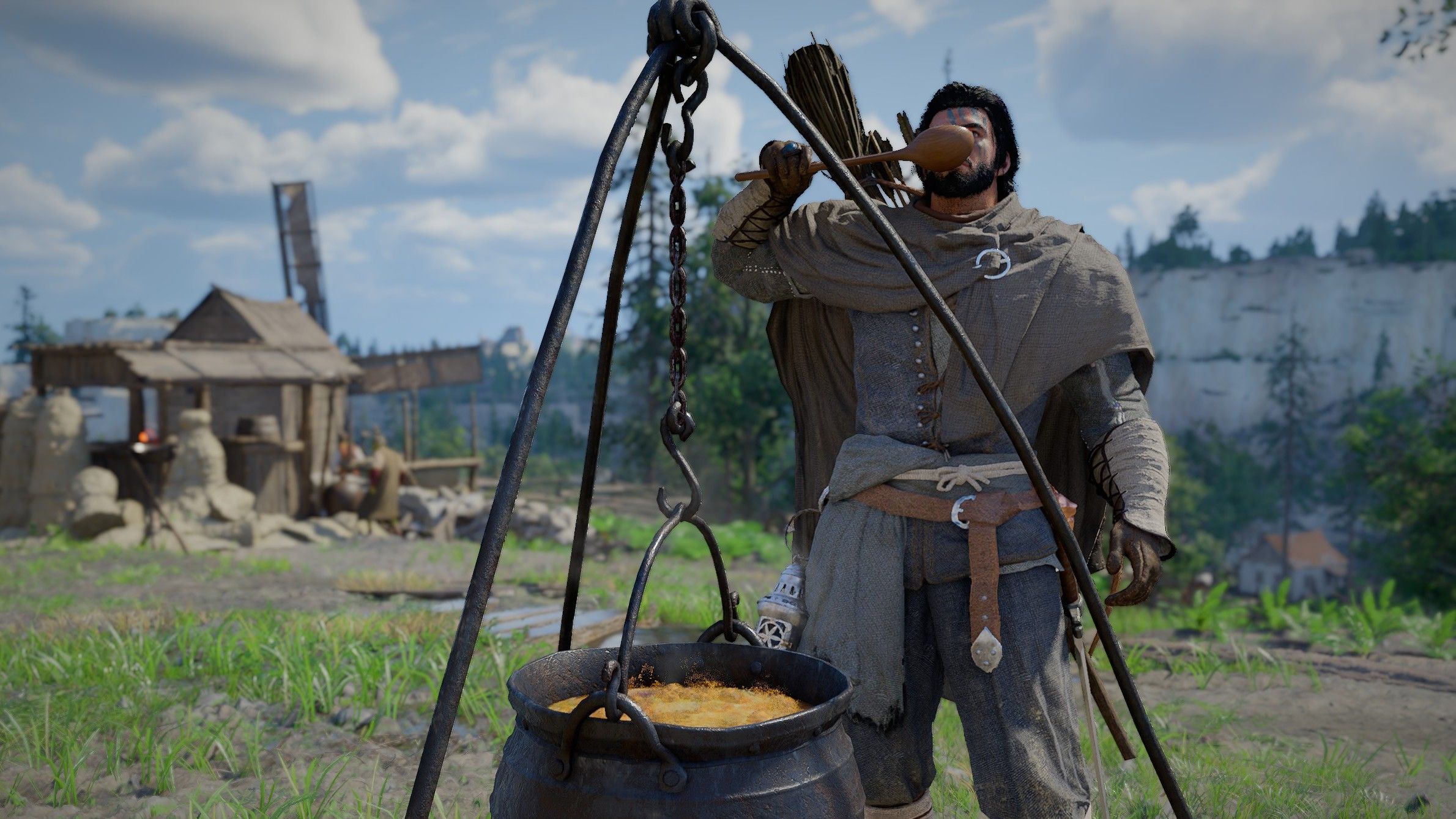
Crimson Desert's new food-system mod is interesting because it appears to restore cut mechanics, but that does not mean Pearl Abyss has officially added them.

Crimson Desert Boss Rematch System Live Explained
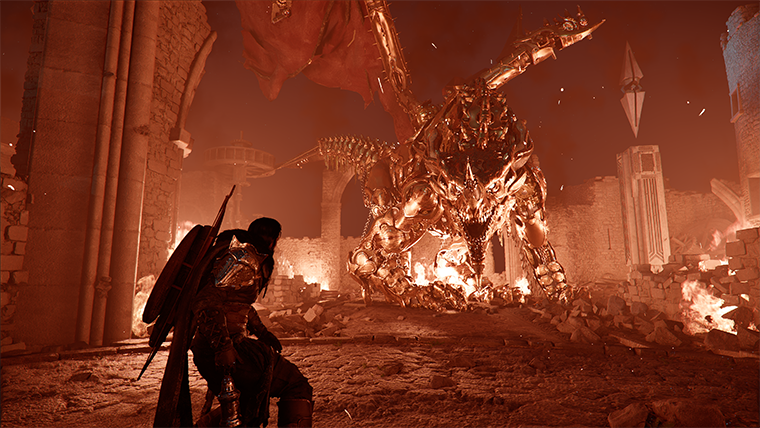
Patch 1.05.00 makes Boss Rematch live for 69 bosses, with Reminisce and Resonate modes, Memory Fragments, and no separate loot. Here is exactly how it works.
Pearl Abyss Says Future Updates Will Focus on Gameplay, Not Story
A March 2026 shareholder-meeting report suggests Pearl Abyss sees Crimson Desert's story as a weaker area, but says post-launch updates will focus on gameplay improvements instead.
Newsletter
Join the community
Subscribe to our newsletter for the latest news and updates