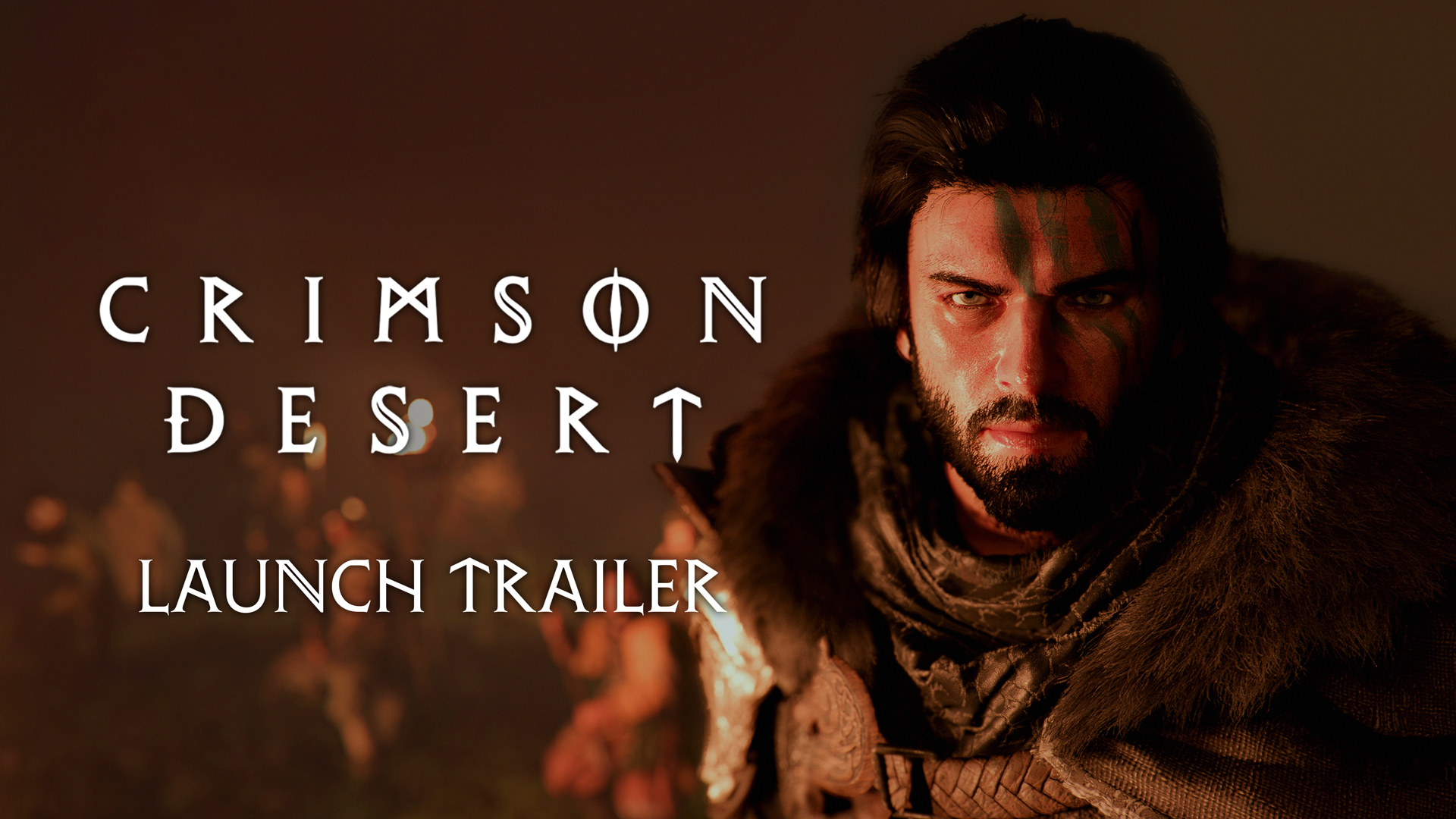
Crimson Desert PS5 and Xbox Graphics Modes, 120Hz, and Blurry Screen Fix
Crimson Desert on console now makes more sense after patch 1.00.03. Here is how the graphics modes fit together, when 120Hz actually helps, and why Pearl Abyss keeps pointing players back to HDMI 2.1 and VRR.
If Crimson Desert looks blurrier than expected on PS5 or Xbox, the official answer is simpler than most Reddit threads make it sound. Pearl Abyss says the first thing to check is your HDMI 2.1 chain, and patch 1.00.03 makes it clear that 120Hz is no longer something the game assumes by default.
That matters because console image quality in Crimson Desert is now tied to three separate things:
- your chosen graphics mode
- whether
120Hzoutput is enabled - whether your display and cable actually support the bandwidth the game expects
Once you line those up correctly, the game becomes much easier to read.
The official console picture after patch 1.00.03
Patch 1.00.03 quietly changed the most important console setting behavior.
Pearl Abyss says:
120Hz outputis now a separate optional setting- it should only be enabled on a
120Hz-capable display - the setup also needs enough bandwidth, such as
HDMI 2.1 - the default refresh rate was changed to
60Hzfor stable image quality
That is the key change. Before this patch, many players were effectively troubleshooting blurry or unstable output without clear official guidance. After the patch, Pearl Abyss is telling players outright that 120Hz is optional and should not be forced unless the whole display path supports it properly.
The performance-spec notice adds two more official footnotes:
- some high-refresh options require a compatible
120/240Hzdisplay andHDMI 2.1 - some behavior also depends on a
VRR-compatible display andHDMI 2.1
What graphics modes does Crimson Desert have on console?
Current console reporting, based on Pearl Abyss' published console specs and follow-up coverage, points to the following structure:
| Platform | Mode structure | What to expect |
|---|---|---|
| PS5 Pro | Performance / Balanced / Quality | Three modes, with Digital Foundry reporting ray tracing across all three and 60, 40, and 30 FPS targets respectively |
| PS5 | Performance / Balanced / Quality | Three-mode structure is reported across PlayStation and Xbox, with base PS5 also using FSR support according to the FAQ |
| Xbox Series X | Performance / Balanced / Quality | Pure Xbox reports 60, 40, and 30 FPS targets across the three presets |
| Xbox Series S | Performance / Quality | Pure Xbox reports a simpler two-mode setup on Series S |
For Xbox Series X specifically, the current reporting says:
Performancetargets60 FPSBalancedtargets40 FPSQualitytargets30 FPS
For PS5 Pro, TechRadar's write-up of Digital Foundry's testing says:
Performancetargets60 FPSBalancedtargets40 FPSQualitytargets30 FPS
The exact rendering details are a little more public on Xbox coverage than on base PS5 coverage right now, but the practical choice is the same on both families: pick the mode that matches your display and your tolerance for image softness or frame drops.
Which mode should most people use?
Here is the short answer.
Use Performance if:
- you care most about combat feel
- you are on a smaller monitor where softness is less distracting
- you have a proper
120HzorVRRsetup and want the smoothest response
Use Balanced if:
- you have a display that handles
40 FPSmodes well - you want a cleaner image than Performance without dropping all the way to 30
- you understand how
120Hzsupport affects 40 FPS presentation
Use Quality if:
- image clarity matters more than response time
- you are playing on a large TV and prefer the cleanest presentation
- you are okay with a locked
30 FPStarget
For a lot of players, Balanced is the mode that sounds best but behaves worst when the rest of the setup is not right. That leads directly to the next point.
Why 120Hz matters even if you are not chasing 120 FPS
This is where many console guides get sloppy.
Crimson Desert is not saying "turn on 120Hz because the game runs at 120 FPS." It is saying that some higher-refresh behavior, especially around 40 FPS presentation and smoother output above 40 in the official patch note, depends on having a 120Hz-capable display and enough bandwidth.
That is why the official patch note specifically warns that:
- in
Balancedmode, enablingV-Synccan lock you at30 FPSwhen the game is swinging between30and40 - for smoother gameplay above
40 FPS, you should enable the120Hzoption if your display supports it - or turn off
V-Syncin aVRRenvironment
So 120Hz is not just a brag-number setting. It is part of how the game presents 40 FPS-class output cleanly.
The official blurry-screen fix
Pearl Abyss' FAQ answer is blunt: if the screen looks blurry on PlayStation or Xbox, your HDMI cable may not support HDMI 2.1, and the studio strongly recommends using an HDMI 2.1 cable for the best image quality.
That means the first checklist item is not your TV picture preset or your console RGB range. It is this:
- Is your cable actually
HDMI 2.1? - Is it plugged into the correct
HDMI 2.1port on the TV or monitor? - Is your display's high-refresh or gaming mode actually enabled for that port?
If any one of those fails, the game can end up looking worse than its mode label suggests.
Best setup advice for TV players
If you play on a TV, use this order:
- Confirm you are on a real
HDMI 2.1input. - Use a certified HDMI 2.1 cable.
- Turn on the TV's game mode.
- Check whether the TV needs a separate
Enhanced HDMI,4K120, or similar per-port toggle. - Then test Performance, Balanced, and Quality again.
For large-screen TV play, Quality or Balanced usually makes more sense than Performance unless you are very sensitive to latency, simply because softness is more obvious at couch distance on a big panel.
If Balanced looks inconsistent, check whether:
120Hzis enabledV-Syncis onVRRis available on your TV
Those three settings are exactly where Pearl Abyss says instability can creep in.
Best setup advice for monitor players
If you use a monitor, the main questions are simpler:
- Does the monitor support
120Hzor higher over the port you are using? - Does it support
VRR? - Are you using HDMI 2.1 where required?
Monitor users often get the best results from Performance or Balanced, especially if they are sitting close enough for motion clarity to matter more than pure pixel density.
If you have a high-refresh monitor but no VRR, do not assume Balanced will automatically feel better than Quality. With V-Sync behavior in the mix, it can sometimes feel less consistent.
When not to force 120Hz
Do not force 120Hz just because your console menu says it is available.
Based on Pearl Abyss' own wording, you should leave 120Hz off if:
- your display is not actually 120Hz-capable
- your cable is not HDMI 2.1
- your setup cannot hold enough bandwidth cleanly
- you are troubleshooting blur or instability and need to return to a known-good baseline
Patch 1.00.03 making 60Hz the default was not random. Pearl Abyss did that specifically for image stability.
The most practical mode recommendations right now
If you want the safest starting point after the patch:
- start with
60Hzoutput - use
Qualityon a big TV if you want the cleanest image - use
Performanceon a monitor if you want the snappiest feel - only move into
Balancedafter checking 120Hz and VRR support properly
That approach follows the official notices more closely than the usual "always use Balanced" advice.
FAQ
Why does Crimson Desert look blurry on my PS5 or Xbox?
Pearl Abyss says one of the first things to check is whether your cable supports HDMI 2.1. That is the studio's official blurry-screen fix advice.
Should I leave 120Hz on all the time?
Not necessarily. Patch 1.00.03 makes 120Hz optional and shifts the default back to 60Hz for stable image quality.
Does VRR help in Crimson Desert?
Yes, potentially. Pearl Abyss specifically mentions turning off V-Sync in a VRR environment as one route to smoother play above 40 FPS.
What is the safest console mode to start with?
Use Quality for the cleanest TV image or Performance for the cleanest control feel. Then test Balanced only after your 120Hz and VRR setup is confirmed.
What to do next
Check your baseline first with Crimson Desert System Requirements — PC, PS5 & Xbox, then read Crimson Desert Known Issues and Best Workarounds for the current live problem list. If you are tracking the patch context behind the 120Hz change, go to Crimson Desert Patch Notes 1.00.04 Hotfix Roundup and Crimson Desert Patch Notes 1.00.03 Explained.
더 많은 가이드
Crimson Desert Bounties Guide
Bounties are one of Crimson Desert's better early money tools, but they only pay off if you read the poster properly, follow clue logic, and search the right area at the right time.

Best PC Settings for Crimson Desert After Patch 1.00.03
The best PC settings for Crimson Desert after patch 1.00.03 start with official guardrails, not random presets. Here are the supported upscalers, driver targets, image-stability warnings, and three practical profiles to start from.

How to Beat the Giant White Spider in Crimson Desert
Boss strategy guide for the Giant White Spider, a fluffy but deadly boss that fires damaging webs in Crimson Desert.

Newsletter
Join the community
Subscribe to our newsletter for the latest news and updates